A comfortable and useful workstation is essential for maximizing productivity in today’s fast-paced digital environment. Making the move to wireless technology is one way to do this, particularly with affordable wireless keyboard and mouse combos. Along with decreasing clutter and enhancing mobility, these solutions provide your desk with a neat, modern look. Whether you’re working from home or in a professional environment, inexpensive wifi options provide the best price, productivity, and convenience ratio. With more professionals adopting the wireless future, the days of tangled cables and limited mobility are quickly ending.
The Benefits of Wireless Technology in Workplace Settings
Because wireless technology offers many distinct advantages over traditional cable devices, it is completely changing how we interact with our workplaces. Office employees who spend a lot of time at their desks find that wireless devices greatly increase their comfort and flexibility. Your gadgets are not limited by wires, so you can easily move and rearrange them around your desk. Moreover, wireless technology lowers distractions by clearing your desk of an unsightly network of connections, resulting in a more organized and focused work environment. Furthermore, these devices are adaptable to various office setups, promoting innovation and collaboration.
A person is sitting at a desk with a computer, taking notes while watching an online presentation with a female speaker on the screen. The desk has a keyboard, mouse, tablet, and plants.
Utilizing Wireless Technology to Minimize Desk Disarray
Apart from being visually appealing, a desk devoid of clutter is crucial for enhancing focus and efficiency. Wireless keyboards and mice allow you to eliminate the clutter of cords that may take over your workspace. With fewer physical obstacles to overcome, you may devote more of your desk to more important tasks, such as notes, papers, or other accessories. Eliminating desk clutter not only improves the efficiency of your setup but also creates a calm and orderly atmosphere that may enhance your overall productivity and mental clarity.
Increasing Efficiency via Wireless Independence
Wireless gadgets are known for their freedom. Imagine not having to worry about cords and being able to move your keyboard and mouse about your desk. You may find the ideal posture that lessens the strain on your wrists and shoulders during extended work hours thanks to the additional ergonomic modifications made possible by this increased flexibility. Furthermore, wireless flexibility facilitates effortless transfers between sitting and standing postures, or even across the room, which is advantageous for those who often exhibit their work or communicate with colleagues. Comfort and productivity may coexist together with the correct wifi configuration.
A person uses a white computer mouse and keyboard on a white desk.
Recognizing the Disparities Wireless vs. Wired Mouse and Keyboard
Understanding the main distinctions between wired and wireless devices is crucial. For some people, wired keyboards and mice are a dependable option since they usually provide a steady connection without requiring batteries. Wireless solutions, however, offer an unparalleled degree of mobility and ease. Thanks to technological improvements, wireless gadgets are now just as responsive as their wired counterparts and are powered by batteries or rechargeable systems. The advantages of switching to wireless technology for individuals seeking a more hygienic and adaptable workstation much exceed the little annoyances of sometimes needing to charge or replace batteries.
Important Qualities to Consider in an Inexpensive Wireless Keyboard and Mouse Set
The wireless keyboard and mouse combination you choose may have a big impact on how you operate every day. Knowing which features to prioritize can help you get the most out of your investment, especially with so many reasonably priced alternatives available. Here are some important things to think about:
Power Efficiency and Battery Life
Battery life is one of the most important considerations in a wireless setup. Look for gadgets with longer battery life; some may operate for months or even years on a single charge. Furthermore, power-saving features like automated sleep modes are becoming common in wireless combinations, helping to save energy while the devices are not in use.
Hands typing on a white keyboard next to a mouse, glasses, notepad with a pencil, and a small plant on a purple background.
Wireless Signal Strength and Range
The wireless range is another crucial element. A range of 30 feet or more is appropriate for the majority of workplace configurations. This guarantees that even if you have to walk about your office, your gadgets will still be responsive. Select a combination that provides dependable communication, whether by Bluetooth or a dedicated USB receiver, since strong signal strength is essential for avoiding latency.
Designing Using Ergonomics for Extended Comfort
Comfort is always important, particularly for those who work long hours at workstations. Your whole work experience may be enhanced and the danger of repetitive strain injuries decreased with an ergonomic keyboard and mouse. For a more natural and less taxing typing and clicking experience, look for curved keyboards, wrist rests, and contoured mice that fit gently in your hand.
Important Features and Layout: Choosing the Best Option for Office Work
There are many different keyboard layouts, so it’s critical to choose one that works for your office responsibilities and typing style. For instance, a tiny keyboard could be more suited for general office work, while a full-sized keyboard with a numeric keypad is perfect for accounting activities. Additionally, think about where to put shortcuts and function keys that might improve your productivity, such as programmable buttons or media controls.
A tidy workspace with an Apple iMac on a wooden stand, accompanied by a keyboard, mouse, and leather mouse pad. Simple decor includes a small plant and a lamp.
Compact and Portable: Ideal for Adaptable Office Configurations
Portability is a crucial characteristic for those who often alternate between working from home and the workplace. Wireless combinations that are small and light make them simpler to carry about, taking up little room in a purse or briefcase. They are perfect for flexible office arrangements because of their small size, which lets you work comfortably wherever you are.
The Best Inexpensive Wireless Keyboard and Mouse Setups for Offices
After going over the main characteristics, here are a couple of the most reasonably priced wireless keyboard and mouse sets on the market right now:
The Greatest Wireless Sets Under $50
Many high-quality wireless combinations provide great performance without breaking the bank, making them ideal for customers on a tight budget. Among the greatest choices under $50 are the HP 230, which provides silent operation and portability, and the Logitech MK360, which is renowned for its comfort and full features.
Logitech MK360
Top Options for Value for Money: Affordability and Quality in Balance
The Samsers Ultraslim Set is a great option if you want to combine high-end capabilities with cost. It is renowned for being under $50 and having a sleek, ergonomic feel (& it even comes in pink!!). Another great choice is the Artek Ultraslim Combo, which offers a long battery life and a seamless user experience.
How long will your combo last in terms of durability and build quality?
Affordability is important, but you also want a combination that will last. Choose gadgets that can withstand normal wear and tear and are constructed of sturdy materials. Both Microsoft and Logitech wireless combinations are renowned for their dependable operation and sturdy construction.
A Beginner’s Guide to Wireless Keyboard and Mouse Configuration
Even novices may easily set up a wireless keyboard and mouse. Plugging the USB receiver into your computer and waiting for the devices to sync is the standard function of most wireless combinations. To connect to a Bluetooth model, follow your computer’s pairing instructions.
Plug-and-Play Solutions: The Most Simple Combinations to Set Up
Installing a wireless combination is as simple as connecting in a receiver and putting in batteries since many of these devices are designed with simplicity in mind. For anybody who wants to simplify their workplace without having to deal with laborious setup procedures, these plug-and-play options are perfect.
Solving Typical Wireless Keyboard and Mouse Problems
Wireless devices may sometimes have trouble connecting. Start by recharging the devices or checking the batteries if this occurs. Verify that the Bluetooth or USB receiver is operating correctly, and if required, try pairing the devices again.
How to Extend Wireless Keyboards’ and Mice’s Battery Life
Time and money may be saved by maximizing battery life. Turning off your wireless keyboard and mouse while not in use is one approach to prolong their lifespan. Energy conservation may also be achieved by changing settings like keyboard backlighting.
Using Wireless Devices to Keep a Clean and Effective Workspace
Even if wireless gadgets make things less cluttered, it’s still crucial to keep your workstation tidy. To avoid dust and debris accumulation, clean your keyboard and mouse on a regular basis. Maintaining an orderly workstation further increases productivity by creating a space free from distractions.
What Not to Do: Typical Mistakes Selecting a Wireless Combination
Steer clear of products with poor battery life or known connection problems when looking for an inexpensive wireless combo. Avoiding gadgets with basic ergonomic characteristics is also advised since they may eventually cause pain.
Secondary Devices: Expanding Your Configuration with Additional Wireless Office Equipment
There are a number of wireless devices that may improve your workplace setup in addition to a keyboard and mouse. To truly enjoy the clutter-free experience, think about adding a wireless printer, wireless headphones, or a wireless charging station.
Should You Use USB Wireless or Bluetooth? Benefits and Drawbacks
Since Bluetooth devices don’t need a USB receiver, they’re ideal for those who would rather have fewer dongles. On the other hand, USB wireless devices often have greater stability and range. In the end, the decision is based on your own requirements and tastes.
Office Configurations of the Future: Adopting Wireless Technology
The tendency towards wireless gadgets is only going to become stronger as technology advances. Efficiency, adaptability, and mobility will be key factors in the workplace of the future. In addition to adding vibrancy to workplaces, wireless technology paves the way for even more creative solutions in the years to come.
FAQs Regarding Inexpensive Wireless Keyboard and Mouse Sets
What is the average lifespan of a wireless keyboard and mouse set?
A: With the right maintenance, most combinations survive for many years. Depending on use, battery life may range from months to years.
Is it possible to utilize a wireless combo on more than one device?
A lot of wireless combinations work with a variety of devices, including tablets and desktop computers.
Final Thoughts: Finding the Ideal Wireless Keyboard and Mouse Set for Your Office
Cutting cables is just one aspect of selecting the ideal wireless keyboard and mouse setup for your workspace. It all comes down to streamlining your routine, making your workspace more comfortable, and establishing a clutter-free space that encourages productivity. You may locate a high-quality mix that meets your demands without going over budget thanks to the abundance of reasonably priced selections accessible. You may design a workstation that is both practical and freeing by emphasizing qualities like mobility, ergonomics, and battery life.
Creating a home office that’s both functional and inspiring is essential in today’s remote work era. Proper lighting plays a crucial role in this setup, going beyond decoration to impact productivity, ease eye strain, and even influence mood. With the right lighting arrangement, a home office can transform from a simple space into a comfortable, creative workspace where you can thrive for extended periods. This guide will walk you through choosing the ideal lighting for a productive and aesthetic home office.
Making the Most of Natural Light
Natural light is often the best source of illumination. If your workspace has windows, position your desk and equipment to maximize natural light exposure. Natural light not only enhances mood and energy but also reduces reliance on artificial lighting. To minimize glare on screens, place your desk perpendicular to the window. Utilizing natural light in this way creates an open, bright, and welcoming environment.
Setting Up the Right Artificial Lighting for Your Home Office
Selecting the right artificial lighting makes a significant difference in your workspace. Your office layout and its function should guide your lighting choices. A balanced blend of ambient, task, and accent lighting ensures every part of your workstation is well-lit. Let’s look at the different types of lighting and their roles in a home office.
Types of Lighting
Ambient Lighting
This lighting provides general illumination for the room. Options include ceiling fixtures, recessed lighting, or well-placed floor lamps. Ambient lighting should offer a soft, even glow without creating harsh shadows.
Task Lighting
Task lighting focuses on areas where you need direct light for activities like reading, writing, or computer work. Desk lamps with adjustable arms or swivel heads are perfect for concentrating light on your workspace.
Accent Lighting
Accent lighting adds depth and visual interest, enhancing the room’s aesthetics. It balances overall brightness, reducing eye strain. Consider LED strips, track lights, or small wall sconces for subtle accent lighting.
Key Considerations When Choosing Lighting for Your Home Office
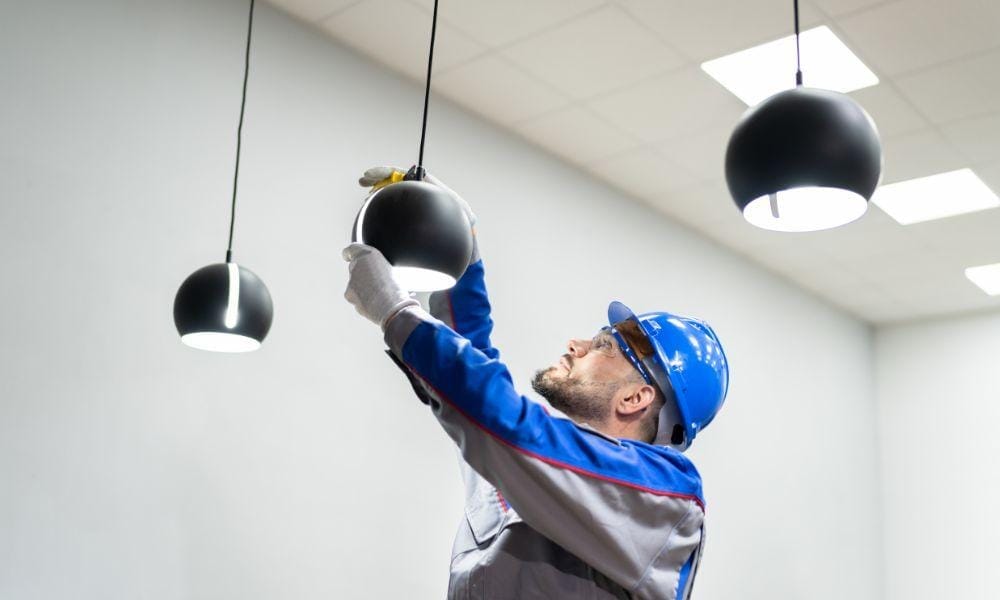
Several factors should influence your lighting decisions. First, consider the size of your office. In smaller spaces, one or two well-placed lights might suffice, while larger areas may require multiple light sources. Other considerations include wall color and ceiling height—lighter walls reflect more light, and higher ceilings often work well with pendant lights. Finally, incorporate your personal style to create a workspace that feels uniquely yours.
Selecting the Best Desk Lamp for Task Lighting
Desk lamps are essential for most home offices, and the right lamp can enhance both functionality and style. Look for lamps with adjustable arms or swivel heads to direct light exactly where you need it. LED desk lamps are popular for their high brightness and energy efficiency, with some models offering dimming features to customize brightness according to your tasks.
Determining the Right Brightness Level
Your lighting should match the demands of your work. For general office tasks, such as reading or typing, 300 to 500 lumens is generally sufficient. For more detailed tasks like drafting or analysis, higher brightness levels are beneficial. Adjustable lighting options allow you to vary brightness throughout the day based on changing natural light and personal preferences.
Understanding Color Temperature for Home Office Lighting
Color temperature, which indicates the warmth or coolness of light, can greatly affect your workspace’s feel. Lower color temperatures (around 2700K) create a warm, relaxing glow, while higher temperatures (5000K+) mimic daylight. A neutral to cool white range (3500–4500K) is ideal for most home offices, as it promotes focus without being overly harsh.
Choosing the Right LED Bulbs for a Home Office
LED bulbs are efficient, long-lasting, and available in various color temperatures. For task lighting, cooler LEDs are ideal, while warmer LEDs work well for ambient lighting. Since LEDs are compatible with dimmer switches, they offer versatile control over office lighting.
Minimizing Glare for Optimal Comfort
Glare can be a significant issue, especially when using screens for extended periods. Diffused lighting and positioning lamps to avoid direct reflections on surfaces help reduce glare. Anti-glare desk lights, window treatments, or adjustable shades also improve comfort by reducing eye strain, allowing you to stay focused for longer.
Layering Your Home Office Lighting
Layered lighting, which combines multiple light sources, creates a balanced and well-lit space. Start with ambient lighting to brighten the room, then add task lighting for work-specific areas. Finally, use accent lighting to soften shadows and add warmth. This layered approach increases functionality and gives the room an aesthetically pleasing ambiance that boosts productivity.
Choosing Lighting Fixtures to Match Your Office Design
Your home office lighting should complement the room’s overall design. The right fixtures enhance both ambiance and style, helping create a cohesive, welcoming workspace. Here’s how to match lighting with your office décor:
Modern Minimalism: For a minimalist look, choose sleek fixtures with clean lines, such as recessed lighting, streamlined desk lamps, or simple pendant lights.
Classic Style: Ornate fixtures, such as chandeliers or decorative wall sconces, create a timeless, elegant look that suits traditional office spaces.
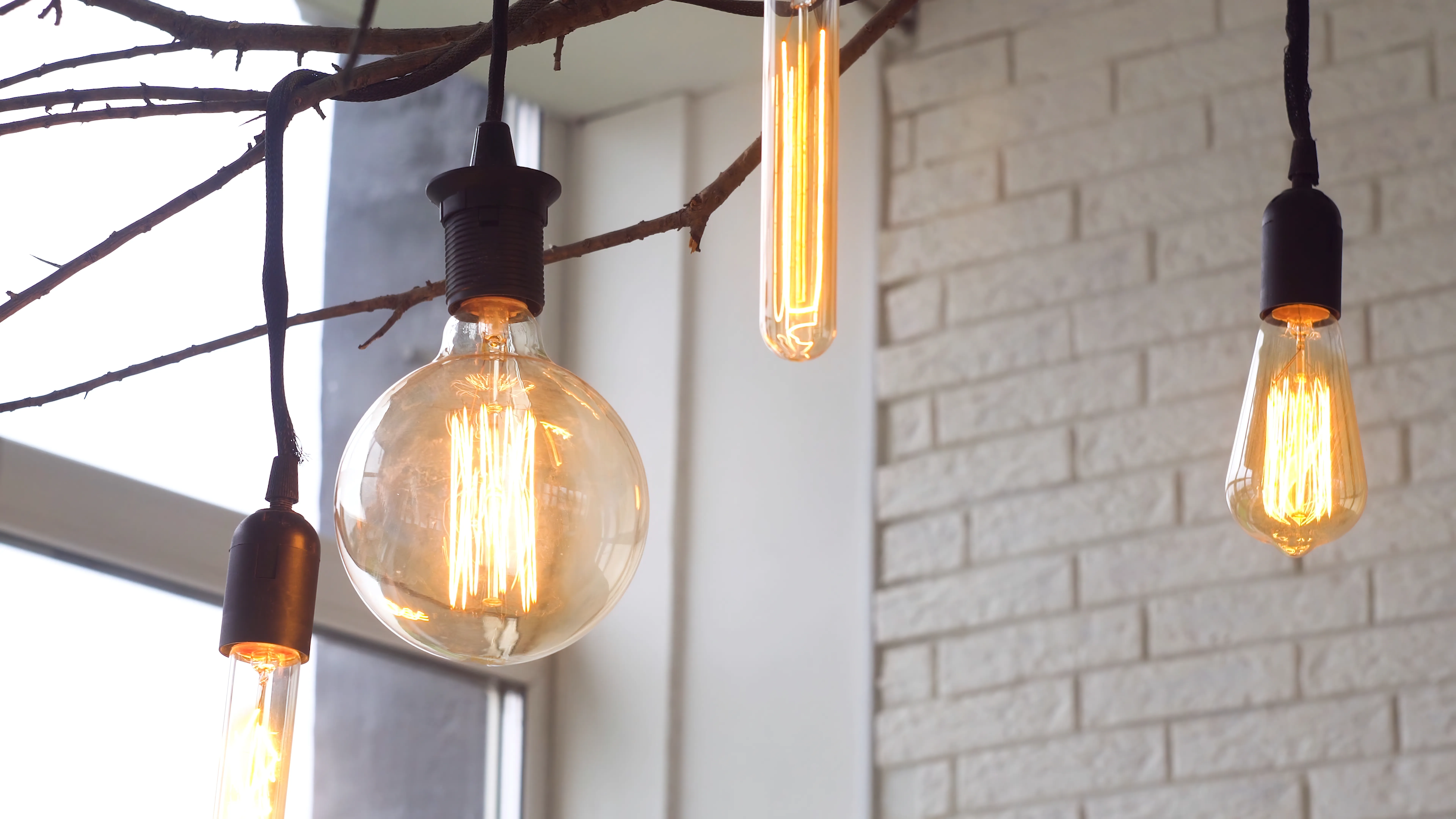
Industrial Aesthetic: Exposed bulbs, metal finishes, and wire detailing add character and an edgy vibe to industrial-themed offices.
Matching your lighting fixtures to your décor enhances the cohesiveness of your workspace and creates a more engaging environment.
The Benefits of Dimmable and Adjustable Lighting
Dimmable and adjustable lighting offers flexibility, allowing you to tailor your workspace ambiance. Dimmable lights are especially useful in early mornings or late evenings, creating a calm atmosphere when brighter lighting isn’t needed. Look for lamps with built-in dimmers or add dimmer switches to your current setup for greater control.
Positioning Your Lighting for Maximum Effect
Proper light positioning is essential for an efficient workspace. Avoid placing lighting directly behind you to prevent shadows on your desk. Ambient lighting should be positioned overhead, while task lighting should be next to your work area. Strategic placement ensures every area is well-lit and shadow-free, supporting productivity.
Smart Lighting Options for a Home Office
Smart lighting is increasingly popular for home offices, offering features like color customization, scheduling, and remote control. Smart bulbs allow you to adjust color and brightness using voice commands or a smartphone app. With preset options, it’s easy to switch between a productive work mode and a more relaxed setting during breaks.
Budget-Friendly Lighting Solutions for a Home Office
Acquiring well-designed lighting doesn’t have to be expensive. LED bulbs are energy-efficient and affordable, helping reduce electricity costs. Thrift stores or online marketplaces often offer chic second-hand fixtures. Small changes, like repositioning lights or adding dimmer switches, can make a significant impact without breaking the bank.
Conclusion: Tips for Choosing the Ideal Home Office Lighting
Achieving the perfect lighting setup for your home office is a blend of thoughtful planning and personal preference. By incorporating layered lighting, paying attention to brightness and color temperature, and utilizing different types of fixtures, you can cultivate an environment that not only meets your functional needs but also enhances your creativity. Don’t hesitate to experiment with various arrangements until you discover the ideal balance that suits your workflow and aesthetic. Remember, the right lighting can significantly impact your mood and productivity levels. So take the time to optimize your workspace—your ideal home office awaits!
Working from home offers convenience, but it also brings challenges—particularly with eating habits. The constant access to the pantry and fridge can make it tempting to snack throughout the day. Instead of giving up snacking altogether, choosing the right options is key to maintaining focus, productivity, and well-being. With nutrient-dense, energy-boosting choices, home office workers can keep their energy steady, enhance cognitive function, and avoid the sluggish effects of processed, sugary snacks.
The Challenge of Maintaining a Healthy Diet While Working from Home
A unique challenge of working from home is the easy access to snacks. Remote workers often reach for quick options like chips, cookies, or sweets out of habit or as a break between tasks. Although these snacks may provide a quick energy boost, they’re typically packed with empty calories and refined sugars, leading to blood sugar spikes that eventually drop, causing fatigue, inattentiveness, and a lack of motivation. This unhealthy snacking pattern negatively affects mood, productivity, and overall well-being over time. Choosing healthier snack options helps remote workers maintain steady energy, focus, and balance throughout the workday.
How Healthy Snacks Impact Focus and Productivity
A smart snack choice can be a remote worker’s best friend. Snacks rich in fiber, protein, and essential nutrients help stave off hunger and keep focus sustained. By contrast, snacks high in refined carbs or sugars may deliver a temporary energy boost, but they’re often followed by a crash that makes even simple tasks feel challenging. Nutrient-dense snacks, however, support steady focus, boost cognitive function, and nourish the brain.
Healthy Snack Options for Home Office Workers
Fruits: Naturally Sweet and Refreshing
Fruits are a natural source of vitamins, minerals, and antioxidants essential for overall health. Apples, for example, are high in vitamin C and fiber, making them a great between-meal snack. Berries like strawberries and blueberries are rich in antioxidants that combat oxidative stress, a factor in mental fatigue. Pineapple or watermelon slices can provide a refreshing, hydrating snack, especially beneficial for workers who may not realize they’re dehydrated.
Nuts and Seeds: Small but Powerful Superfoods
Nuts and seeds, despite their small size, pack a nutritional punch. Almonds, for instance, offer protein, healthy fats, and vitamin E—perfect for energy without a sugar spike. Walnuts are particularly beneficial for brain health due to their omega-3 fatty acids, while seeds like chia and flax add fiber, omega-3s, and protein to meals or snacks. Nuts and seeds are easy to portion and keep on hand, making them a convenient choice for home office snacking.
Greek Yogurt with Toppings: Filling and customizable
Greek yogurt, rich in protein and probiotics, is excellent for digestive health. Its creamy, tangy texture pairs well with a range of toppings. Adding berries, honey, and nuts to Greek yogurt creates a satisfying, nutrient-dense snack. High in protein and calcium, Greek yogurt supports productivity and helps curb hunger during long workdays.
Hummus with Vegetable Sticks: Crisp and Packed with Nutrients
Crunchy veggies paired with creamy hummus make a nutrient-dense, quick-to-prepare snack. Vegetables like carrots, cucumbers, and bell peppers provide fiber, vitamins, and minerals that aid digestion and promote well-being. Made from chickpeas, hummus is high in protein and fiber, adding a savory flavor that complements various veggies and keeps you full and focused.
Handmade Trail Mix: Sweet and Savory Harmony
Homemade trail mix allows you to customize flavors and ingredients while ensuring nutritional value. Combine dried fruits like raisins, apricots, and cranberries with crunchy nuts such as almonds or walnuts. Adding a bit of dark chocolate makes this snack feel indulgent, while seeds like sunflower or pumpkin add fiber and healthy fats. Trail mix is easy to prepare, customize, and portion, making it ideal for remote workers.
Smoothies: Nutrient-Rich and Refreshing
Smoothies are an easy way to consume a variety of nutrients in a single drink. Blend fruits, greens (like spinach or kale), and a protein source (such as Greek yogurt or protein powder) for a balanced snack. Additional ingredients like oats, flaxseeds, or chia seeds add fiber and protein, making smoothies versatile enough to replace a meal on busy days or serve as a refreshing snack.
Whole-Grain Crackers with Toppings: Versatile and Satisfying
Whole-grain crackers provide a complex carbohydrate base that pairs well with protein-rich toppings. Add cheese, avocado, or nut butter to enhance the flavor and nutritional value, creating a balanced snack. Whole grains offer fiber and sustained energy, helping to stabilize blood sugar levels and maintain energy throughout the day.
Avocado Toast: A Trendy, Nutritious Classic
Avocado toast has become a favorite for good reason. Avocados are rich in fiber, potassium, and healthy fats, making a tasty, nutritious snack or light meal when spread on whole-grain bread. Toppings like cherry tomatoes, radishes, or a poached egg adds flavor and nutrients, offering remote workers a customizable option that supports energy and fullness.
Cottage Cheese with Fruit: High-Protein, Low-Calorie Option
Cottage cheese is often overlooked, but it’s high in protein and pairs well with fruits like pineapple, berries, or peaches for a filling, low-calorie snack. This combination provides natural sweetness, and the high protein content keeps hunger at bay—ideal for those seeking a nutrient-rich, low-calorie option.
Hard-Boiled Eggs: Nutrient-Dense and Convenient
Hard-boiled eggs are convenient and high in protein, making them an excellent snack for home office workers. Packed with choline and vitamin D, they’re simple yet nutritious. With a sprinkle of salt, pepper, or chili sauce, hard-boiled eggs make a filling snack that’s easy to prepare.
Energy Bars: On-the-Go Nutrition
Energy bars are versatile, especially when homemade. You can make bars high in protein, fiber, and healthy fats with ingredients like oats, honey, nuts, and seeds. If buying pre-made, choose bars with minimal sugar and natural ingredients. These bars provide a balanced, convenient snack to keep you energized during long workdays.
Dark Chocolate: A Healthy Treat
Dark chocolate, enjoyed in moderation, is packed with antioxidants and can boost mood. Opting for chocolate with at least 70% cocoa content ensures lower sugar while satisfying sweet cravings. Pairing dark chocolate with a few nuts or pieces of fruit creates a guilt-free, nutritious snack.
Creating a Healthy Snacking Routine
Incorporating these snacks into a daily routine can significantly enhance overall health and productivity for remote workers. Planning snacks in advance, practicing portion control, and focusing on whole foods can create a balanced approach to snacking. Thoughtfully choosing nutrient-dense snacks supports both physical and mental well-being, achieving a harmonious balance between work, health, and nutrition.
Final Thought: Embracing Healthy Snacking for Sustained Peak Performance
Imagine this: You’re sitting at your desk, the sun streaming in through the window, a hot cup of joe, and your favorite playlist setting the perfect background rhythm. The hours stretch ahead, filled with tasks and projects that require not just your time, but your full attention and creative spark. As the morning wears on, you start to feel that familiar dip in energy and focus. This is where healthy snacking comes to the rescue, like a trusty sidekick ready to boost your mood and sharpen your mind.
When you prioritize these healthier options, you’re not just making a small dietary change. You’re setting the stage for a day where you can stay engaged and productive, hitting your goals with confidence and vigor. This mindful approach to snacking transforms those mid-morning and afternoon breaks into opportunities for sustaining your momentum and maintaining peak performance.
As you navigate your work-from-home journey, remind yourself that every bite you take can be a step toward greater health and professional success. Embrace the power of healthy snacking and observe how it helps you stay at your best each day—energized, engaged, and always ready to perform.
Working remotely can be a fantastic experience, but it’s important to ensure the safety of our beloved devices amidst this flexibility. So, how do we keep our devices safe when working from home with flexible hours? Let’s dive in and explore some essential tips and tricks.
First off, protecting your devices from potential cyber threats is crucial. With hackers lurking in the digital realm, it’s essential to have robust cybersecurity practices in place. From using strong passwords to keeping your software updated, we’ll walk you through all the necessary steps to fortify your devices.
But safety isn’t just about cybersecurity; it’s also about protecting your physical devices. Accidents happen, and spills, drops, or theft can leave us in a tough spot. Fear not! We’ve got you covered with smart strategies to prevent mishaps and keep your devices in top-notch condition.
So, whether you’re a student attending remote classes, engaging in remote work for college students, or just someone working from home, join us on this journey to safeguard your devices and enjoy a worry-free remote experience. Get ready to unlock the secrets that will keep your devices safe and sound, no matter where you choose to work.
Protect Your Devices When Working Remote:
1. Keep your software up to date. 2. Use strong, unique passwords. 3. Enable two-factor authentication. 4. Be cautious with public Wi-Fi. 5. Use a reliable VPN for secure connections. 6. Backup your data regularly. 7. Install antivirus and anti-malware software. 8. Avoid clicking on suspicious links or downloading unknown files. 9. Lock your devices when not in use. 10. Educate yourself and stay up to date on the latest security practices.
How to Keep Your Devices Safe When Working Remotely
In today’s digital age, remote work, often associated with various digital jobs, has become increasingly common. Many professionals now have the flexibility to work from anywhere, as long as they have a stable internet connection and the necessary devices. However, the freedom of remote work, especially in digital jobs, also comes with its own set of challenges, particularly when it comes to device security. When working remotely, it is crucial to take steps to keep your devices safe from potential threats and attacks. This article will provide you with essential tips and best practices to ensure the security of your devices while working remotely.
1. Use Strong and Unique Passwords
Passwords are the first line of defense against unauthorized access to your devices and accounts. When working remotely, it is essential to use strong and unique passwords for all your devices and online accounts. Avoid using common passwords like “password123” or “123456” as they are easy to guess. Instead, create complex passwords that include a combination of letters, numbers, and special characters. Additionally, it is recommended to use a password manager to securely store and manage all your passwords.
It is crucial to use a different password for each device and account. Reusing passwords across different platforms increases the risk of a security breach. If one account gets hacked, all your other accounts using the same password could be compromised as well. By using unique passwords, you can mitigate the risk and protect your devices from unauthorized access. Utilizing tools like the last pass password generator can help create strong, unique passwords easily, enhancing your digital security effortlessly.
2. Update Your Devices Regularly
Software updates are essential for device security. Developers regularly release updates that fix known vulnerabilities and address security issues. When working remotely, make sure to keep all your devices, including laptops, tablets, and smartphones, up to date with the latest software releases. Enable automatic updates whenever possible to ensure that you are always protected with the latest security patches.
By regularly updating your devices, you minimize the risk of falling victim to cyber attacks and potential security breaches. These updates often include improvements in system security, bug fixes, and new features. Ignoring updates can leave your devices vulnerable to known attacks, putting your sensitive information at risk.
A padlock on a computer keyboard.
3. Secure Your Wi-Fi Network
When working remotely, you are likely to rely heavily on your Wi-Fi network. It is crucial to secure your Wi-Fi network to prevent unauthorized access and eavesdropping. Begin by changing the default network name (SSID) and password provided by your internet service provider. Use a strong password consisting of a mix of letters, numbers, and special characters to secure your network.
Consider enabling Wi-Fi encryption such as WPA2 (Wi-Fi Protected Access 2) or WPA3 for enhanced security. Encryption ensures that data transmitted over your network is encrypted and only accessible to authorized users. Additionally, it is advisable to regularly check for firmware updates for your Wi-Fi router and install them to keep your network protected against any known vulnerabilities. If you’re using a fiber modem, ensure it is also up-to-date and configured correctly to maintain the integrity of your high-speed internet connection.
4. Utilize Two-Factor Authentication
Two-factor authentication (2FA) is an additional layer of security that provides an extra level of protection beyond passwords. When enabled, 2FA requires you to provide a second form of verification, such as a one-time password or a fingerprint scan, in addition to your password. This adds an extra layer of security by ensuring that even if someone manages to obtain your password, they would still need access to the second verification method to gain entry.
Many online platforms and services offer 2FA options, including email providers, social media platforms, and cloud storage services. Enable 2FA for all your accounts to enhance the security of your devices when working remotely. It provides an additional barrier against unauthorized access and significantly reduces the risk of account compromise. Additionally, using an authentication portal can streamline the 2FA process, offering a centralized location to manage and access your multi-factor authentication settings efficiently.
5. Be Cautious When Using Public Wi-Fi
While working remotely, you may find yourself in situations where you need to connect to public Wi-Fi networks, such as in coffee shops, airports, or hotels. However, it is essential to exercise caution when using public Wi-Fi as these networks can be vulnerable to attacks.
Avoid accessing sensitive information or performing any financial transactions when connected to public Wi-Fi. Hackers can intercept your data and gain access to your devices and accounts. If you must use public Wi-Fi, consider using a virtual private network (VPN) to encrypt your internet connection and protect your data from prying eyes.
6. Secure Physical Access to Your Devices
Physical security is equally important when it comes to keeping your devices safe while working remotely. Ensure that your devices are always in a secure location when not in use. Lock your laptop, tablet, or smartphone when stepping away from your workstation, even if you are just taking a short break.
If you work in a public space or travel frequently, consider investing in a laptop lock or a physical device lock to prevent theft. These small measures can go a long way in protecting your devices and the sensitive data they contain.
7. Backup Your Data Regularly
Data loss can occur due to various reasons, including hardware failure, accidental deletion, or cyber attacks. When working remotely, it is crucial to regularly backup your data to ensure that important files and documents are secure and accessible. Use cloud storage services or external hard drives to create backups of your files.
Automate the backup process whenever possible to avoid the risk of forgetting to back up important data. In the event of a device compromise or data loss, having a recent backup ensures that you can quickly restore your files and resume work without major disruptions.
Additional Tips for Keeping Your Devices Safe When Working Remotely
1. Enable Firewall Protection
Firewalls act as a protective barrier, monitoring incoming and outgoing network traffic and blocking unauthorized access. Ensure that firewall protection is enabled on all your devices to add an extra layer of security.
2. Use Antivirus Software
Install reputable antivirus software on your devices and keep it up to date. Antivirus software helps detect and remove malware, protecting your devices from potential threats.
3. Avoid Clicking on Suspicious Links or Opening Unknown Attachments
Be vigilant about the emails, messages, and links you encounter while working remotely. Avoid clicking on suspicious links or opening attachments from unknown sources, as they can contain malware or phishing attempts.
4. Educate Yourself on Current Cybersecurity Practices
Stay informed about the latest cybersecurity practices and potential threats. Educate yourself on common phishing techniques, social engineering attacks, and other forms of cybercrime. By being aware of current trends, you can actively protect your devices and personal information.
A man in a hoodie is looking at a computer screen.
5. Follow Company Security Policies
If you are working remotely for a company, make sure to adhere to their security policies and guidelines. These policies are designed to ensure a secure working environment, and following them helps protect not only your devices but also the organization’s sensitive data.
Let’s Break It All Down:
Working remotely offers flexibility and convenience, but it also poses security risks to your devices and sensitive information. By implementing the tips mentioned in this article, you can significantly enhance the security of your devices when working remotely. Remember to use strong passwords, update your devices regularly, secure your Wi-Fi network, utilize two-factor authentication, and be cautious when using public Wi-Fi. Additionally, prioritize physical security, regularly backup your data, enable firewall and antivirus protection, and educate yourself on cybersecurity best practices. By following these measures, you can enjoy the benefits of remote work while keeping your devices safe from potential threats.
Key Takeaways: How to keep your devices safe when working remotely
Use strong and unique passwords for all your devices and accounts.
Keep your software and operating systems up to date with the latest security patches.
Enable two-factor authentication for an extra layer of security.
Be cautious of phishing emails and always think twice before clicking on suspicious links or downloading unknown attachments.
Regularly back up your important files and data in case of any device loss or cyber attack.
Frequently Asked Questions
Welcome to our Frequently Asked Questions section, where we will address common concerns on how to keep your devices safe when working remotely. With the rise of remote work, it’s important to ensure the security of your devices and data. Let’s dive into some key questions on this topic:
Q: How can I protect my devices from malware and viruses while working remotely?
A: When working remotely, it’s crucial to have robust antivirus software installed on your devices. Make sure to enable automatic updates so that your devices are always protected against the latest malware and viruses. Avoid clicking on suspicious links or downloading software from untrusted sources. Additionally, regularly scan your devices for any potential threats, and be cautious when opening email attachments, even from seemingly legitimate sources.
Another important step is to keep your operating systems and software up to date. This ensures that any vulnerabilities are patched, reducing the risk of malware and viruses infiltrating your devices. Lastly, consider using a Virtual Private Network (VPN) to encrypt your internet connection, providing an extra layer of security when accessing sensitive information.
Q: What are some best practices for creating strong passwords when working remotely?
A: Creating strong and unique passwords is essential to protect your devices and online accounts when working remotely. Avoid using common or easily guessable passwords, such as “password123” or your birthdate. Instead, opt for passwords that include a combination of uppercase and lowercase letters, numbers, and special characters.
Use a different password for each of your accounts to minimize the impact if one account is compromised. Consider using a password manager to securely store and generate strong passwords. Additionally, enable multi-factor authentication (MFA) whenever possible, which adds an extra layer of security by requiring a second verification method, such as a fingerprint or a unique code sent to your mobile device.
Q: How can I protect my data when working remotely on public Wi-Fi networks?
A: When using public Wi-Fi networks, it’s important to take precautions to protect your data from potential eavesdroppers. Avoid accessing sensitive information, such as online banking or private emails, on public networks. If you must access such information, use a Virtual Private Network (VPN) to encrypt your internet connection and ensure your data remains secure.
Additionally, make sure your devices are configured to ask for permission before connecting to new Wi-Fi networks. This helps prevent automatically connecting to malicious networks that may attempt to intercept your data. Lastly, consider using a firewall to add an extra layer of protection against unauthorized access to your devices when connected to public Wi-Fi networks.
Q: How can I keep my devices secure from physical theft?
A: To protect your devices from physical theft, there are several steps you can take. When working remotely, avoid leaving your devices unattended in public areas, such as coffee shops or libraries. If you need to step away, lock your devices or bring them with you.
Consider using physical security measures, such as cable locks or lockable storage containers, to secure your devices when they are at your workstation or during transport. Additionally, enable device tracking or remote wipe features on your devices, which can help locate or delete data in case of theft. Lastly, ensure your devices are password-protected and set up a screen lock timeout to automatically lock your device when not in use.
Q: How can I ensure the security of my online meetings and video conferences?
A: When participating in online meetings and video conferences, it’s important to follow security best practices. Firstly, only share meeting links or access codes with authorized participants to prevent unauthorized access. Avoid posting meeting links publicly or sharing them via unsecured channels.
Use a secure and reputable platform for hosting your meetings, and enable any available security features, such as password protection or waiting rooms to screen participants. If discussing sensitive information, consider encrypting your communications using end-to-end encryption tools or secure messaging apps. Lastly, be mindful of your surroundings and avoid sharing sensitive information or displaying confidential documents during video conferences in public spaces.
Final Thought:
A man is pointing at a padlock on a tablet.
So, here’s what you need to remember to keep your devices safe when working remotely. First, always use strong and unique passwords to protect your accounts. Then, be careful with the links and attachments you click on in emails or messages. Make sure they’re from trusted sources. Keep your devices and software up to date with the latest security patches. And lastly, use a virtual private network (VPN) to secure your internet connection. Stay safe out there!
In conclusion, remember to protect your passwords, be cautious with links and attachments, update your devices and software, and use a VPN. By following these steps, you can keep your devices safe while working remotely.
Working from home can be a dream come true, especially with flexible remote jobs that offer more control over your schedule, but it also comes with its fair share of distractions. So, how can you stay focused and productive in your own space? In this article, we’ll uncover some practical tips and tricks to avoid distractions when working from home.
Picture this: you’re sitting at your desk, ready to tackle your to-do list, when suddenly your phone buzzes with a notification or your favorite TV show tempts you from the living room. Sound familiar? Don’t worry, you’re not alone. Distractions can be a real challenge in a home office setup.
But fear not! With a few simple strategies, you can outsmart those distractions and make the most of your work-from-home experience. From setting up a dedicated workspace to establishing clear boundaries with friends and family, we’ve got you covered.
So, grab a cup of your favorite beverage, find a comfy chair, and get ready to discover how to conquer distractions while working from home. Let’s dive in and make your workday as focused and productive as possible!
Avoiding Distractions When Working from Home
Working from home can be challenging due to potential distractions. Here are some tips to help you stay focused:
Create a dedicated workspace
Set clear boundaries with family and friends
Establish a routine and stick to it
Use productivity apps or tools
Take regular breaks to refresh your mind
By implementing these strategies, you can minimize distractions and maximize your productivity when working from home.
How to Avoid Distractions When Working from Home
Working from home has become increasingly popular, offering flexibility and convenience. However, it also presents unique challenges, particularly when it comes to staying focused and avoiding distractions. In this article, we will explore effective strategies and tips to help you maintain productivity and minimize distractions while working from home.
Creating a Dedicated Workspace
One of the first steps to avoiding distractions when working from home is to establish a dedicated workspace. This can be a separate room, a corner in your living area, or even a designated spot at your dining table. By creating a dedicated workspace, you mentally associate that area with work, which can help you stay focused.
Ensure your workspace is comfortable, well-lit, and equipped with the necessary tools and supplies. A comfortable chair and an ergonomic desk setup can help you maintain good posture and prevent discomfort during long work hours. Keep your workspace organized and free from clutter, as a neat environment can have a positive impact on your focus and productivity.
Minimize distractions in your workspace by setting boundaries with family members or roommates. Let them know that when you’re in your collaborative workspace, you are in work mode. Use headphones to drown out noise, play calming background music, or even utilize white noise machines to block out any external distractions. This approach helps to create a more focused environment, even when sharing your space, ensuring that everyone understands the importance of minimizing disruptions during work hours.
Establishing a Routine
Creating and sticking to a routine can significantly help in avoiding distractions when working from home. Start by setting regular working hours and communicate these hours to your colleagues or clients. This will help establish expectations and boundaries, reducing the likelihood of interruptions or distractions.
When planning your routine, consider your most productive times of the day and schedule your most important tasks during those periods. This will help you maximize your focus and energy levels. Take breaks at regular intervals to rest and recharge, but be mindful of getting back on track once your break is over.
Having a routine also means incorporating non-work-related activities into your day. Make time for exercise, meals, and self-care to ensure a healthy work-life balance. This structured approach will not only minimize distractions but also contribute to your overall well-being and productivity.
Utilizing Time Management Techniques
A man in a suit is holding up a clock in his office.
Time management techniques can be invaluable when it comes to avoiding distractions and maximizing productivity. One popular technique is the Pomodoro Technique, which involves breaking your work into 25-minute intervals, known as “Pomodoros,” followed by short breaks. This method helps prevent burnout and enables you to stay focused during dedicated work periods.
Another effective technique is time blocking, where you allocate specific time slots for different tasks or activities. This allows you to prioritize your work and allocate sufficient time for important projects, while also ensuring you have time for personal tasks or relaxation.
Utilizing productivity apps and tools can further enhance your time management efforts. These apps provide features such as task lists, reminders, and progress tracking, helping you stay organized and manage your time effectively.
Setting Boundaries with Technology
While technology enables remote work, it can also be a significant source of distractions. To avoid falling down the rabbit hole of social media or endless emails, it’s essential to set boundaries with technology.
Start by turning off push notifications on your devices or configuring them to only receive essential notifications. This will prevent constant interruptions and allow you to focus on your work without being constantly tempted by incoming messages or notifications.
Additionally, use browser extensions or website blockers to limit access to distracting websites and apps during your designated work hours. These tools can prevent you from accessing time-consuming or irrelevant websites, helping you stay on track and minimize distractions effectively.
Taking Care of Mental and Physical Well-being
A woman meditating in front of a laptop.
Maintaining good mental and physical health is crucial for staying focused and avoiding distractions. Take regular breaks to stretch, move, or engage in short physical activities. Exercise not only boosts your energy levels but also sharpens your focus and improves your mood.
Practice mindfulness techniques, such as deep breathing or meditation, to clear your mind and increase your ability to concentrate. Taking small breaks for mindful moments throughout the day can help you refocus and regain mental clarity.
Additionally, ensure you get enough restful sleep to rejuvenate your body and mind. Establish a consistent sleep routine and create a peaceful and comfortable sleeping environment to promote quality rest. A well-rested mind is more equipped to handle distractions and maintain focus.
Finding Accountability and Support
Building accountability and finding support when working from home can significantly contribute to avoiding distractions. Consider finding a coworking partner or joining a virtual coworking community where members hold each other accountable and provide moral support.
Communicate your goals and deadlines to someone who holds you accountable. This individual can check on your progress regularly and motivate you to stay on task. Having someone to answer to can help you maintain focus and minimize distractions.
Participate in virtual mastermind groups or online communities related to your industry. These platforms allow you to connect with like-minded individuals facing similar challenges and share strategies for staying focused and productive while working remotely.
Prioritizing Self-Care and Work-Life Balance
Lastly, prioritize self-care and work-life balance to avoid burnout and maintain focus when working from home. Create boundaries between your work and personal life to prevent work from seeping into your leisure time.
Make time for activities that bring you joy and relaxation outside of work hours. Engage in hobbies, spend time with loved ones, or pursue personal development endeavors. By nurturing your well-being, you will be better equipped to handle distractions when they arise and maintain focus on your work tasks.
Remember that finding the right balance is a continuous journey. Experiment with different strategies and techniques to discover what works best for you. Adapt and refine your approach as needed, and don’t hesitate to seek professional support if you’re feeling overwhelmed or struggling to manage distractions effectively.
Key Takeaways – How to avoid distractions when working from home
Create a dedicated workspace in your home.
Set a schedule and stick to it.
Avoid multitasking and focus on one task at a time.
Minimize distractions by turning off notifications.
Take short breaks for relaxation and rejuvenation.
A woman sitting at a desk using a laptop.
Frequently Asked Questions
Working from home can come with its fair share of distractions. Here are some common questions and tips to help you stay focused and avoid interruptions.
1. How can I set up a dedicated workspace at home?
Creating a designated workspace is crucial for minimizing distractions. Find a quiet area in your home where you can set up a desk or table and organize your work essentials. Make sure it’s well-lit and free from household clutter. Let your family members or roommates know that this space is off-limits during your working hours. Use dividers or noise-canceling headphones if needed.
Personalize your workspace with items that motivate and inspire you. Consider adding plants, pictures, or other decorations that make you happy and boost your productivity. Having a dedicated workspace will help you mentally separate work from leisure, enabling you to stay more focused and less susceptible to distractions.
2. What is a good way to establish a daily routine?
Establishing a daily routine is crucial for avoiding distractions. Start by setting a clear schedule and sticking to it as closely as possible. Wake up and go to bed at consistent times. Plan block periods for focused work, breaks, meals, and exercise. Be sure to include time for activities that help you relax and recharge.
When creating your routine, consider your personal productivity patterns. Some people work better in the morning, while others are more alert in the afternoon or evening. Customize your schedule to match your optimal working hours. Having a structured routine will help you stay on track and minimize distractions caused by disorganization or lack of direction.
3. How can I minimize distractions from my phone or social media?
Your phone and social media can be major sources of distraction. To minimize their impact, try the following strategies. First, establish specific times during the day when you can check your phone or social media accounts. Set boundaries and avoid using your phone during work hours.
Use productivity apps or website blockers to limit access to distracting websites or social media platforms during work sessions. Enable “Do Not Disturb” mode or silence notifications to reduce the urge to check your phone constantly. Keep your phone out of reach or in a different room during focused work periods. These steps will help you stay focused and avoid falling into the endless scrolling trap.
4. What can I do when other household members are causing distractions?
When others in your household are causing distractions, communication is key. Have an open and honest conversation with your family members or roommates about your work schedule and the importance of uninterrupted time. Set boundaries and establish clear signals to indicate when you shouldn’t be disturbed.
If possible, try to coordinate your working hours with others in the household. This way, you can all respect each other’s focus time. Consider using noise-canceling headphones or working in a separate room if noise becomes a persistent issue. By addressing distractions proactively and finding mutually beneficial solutions, you can create a more conducive work environment at home.
5. How can I stay motivated and avoid losing focus?
Staying motivated and focused can be a challenge when working from home. To combat this, set specific goals and break them down into manageable tasks. Celebrate small victories to maintain motivation. Create a to-do list or use productivity apps to track your progress and stay organized.
Find ways to stay engaged with your work, such as listening to background music, taking short exercise breaks, or varying your work environment within your home. Set rewards for yourself after completing challenging tasks or meeting important deadlines. Cultivate a positive mindset and practice self-care to keep your energy levels up and your focus steady. By prioritizing your well-being and nurturing your motivation, you can effectively avoid distractions and thrive while working from home.
A woman and a child sitting at a table with a laptop.
Final Thought
Working from home can be full of distractions, but there are strategies to stay focused. First, set up a designated workspace that is free from distractions. Second, create a schedule and stick to it to establish a routine. Third, silence notifications and put your phone away to avoid interruptions. Lastly, take regular breaks to prevent burnout and maintain productivity.
Remember, it’s important to prioritize your work and minimize distractions when working from home. By implementing these strategies, you can stay on track and complete your tasks efficiently. So, stay focused and make the most of your remote work experience!
The work world has steadily migrated from the office to our homes, and with it comes the increasing prevalence of aches and pains associated with prolonged computer use. Have you ever thought that your average keyboard could be the main culprit?
It’s time to ‘Unleash Comfort and Productivity with the Best Ergonomic Keyboards’, a remedy to your discomforts literally at your fingertips. If you’re looking for a keyboard that will make typing more comfortable and efficient during those long work hours, then an ergonomic keyboard might be just what you need. In this article, we’ll go over the best ergonomic keyboards for home office use and what to look for when choosing the best one for your home office.
What Are Ergonomic Keyboards and Why Do They Matter?
Ergonomic keyboards are designed to promote better posture and reduce the risk of repetitive strain injuries (RSIs) that can develop over time due to prolonged typing. An ergonomic keyboard might be a good choice if you’re looking for a keyboard that can help you avoid repetitive strain injuries. But what exactly are they, and why do they matter?
Ergonomic keyboards are designed to promote a more natural posture and hand position while typing. They are meant to reduce strain on your muscles, tendons, and joints, which can help prevent pain and discomfort.
But that’s not all – using an ergonomic keyboard can also increase your typing speed and accuracy. And if you spend a lot of time typing, whether, for work or pleasure, an ergonomic keyboard can make a big difference in your comfort level.
Now, let’s get personal. As someone who spends hours typing daily, I can attest to the importance of an ergonomic keyboard. Before I made the switch, I would often experience stiffness and pain in my hands and wrists after a long day of work. But since switching to an ergonomic keyboard, those problems have largely disappeared.
Plus, there’s something satisfying about using a keyboard specifically designed for your comfort. It’s like having a custom-made piece of furniture or clothing – it just feels better.
You know you need an ergonomic keyboard when you start developing a “QWERTY claw”. This term refers to the painful cramping and stiffness that sets into your hand after using a traditional keyboard for prolonged periods. The name originates from the most common keyboard layout, which starts with the keys Q-W-E-R-T-Y on the top left.
The onset of QWERTY claw is not just a red flag indicating that you’re potentially causing harm to your body; it’s also a reminder that you’re not optimizing your performance. When your hands are in pain, it directly affects your typing speed and accuracy. Before long, even simple tasks end up taking minutes more than they should – time that adds up alarmingly over days and weeks.
Furthermore, this condition isn’t limited to discomfort alone; it can be a precursor to more serious conditions such as Carpal Tunnel Syndrome or Tendonitis. These ailments can have severe consequences leading to possible surgery and lengthy recovery periods. And don’t forget the impact on personal life – simple pleasures like holding a book or playing guitar could become increasingly difficult as the pain persists or worsens.
Getting an ergonomic keyboard might seem like an unnecessary expense initially but think of it as an investment towards better productivity at work and improved quality of life in general. So, if you notice signs of a ‘QWERTY claw’ (or other ailments), don’t brush them off lightly; consider making the switch to an ergonomic keyboard before it escalates further. Let’s address a few introductory questions about ergonomic keyboards:
Q: Are ergonomic keyboards more expensive than traditional keyboards?
A: They can be, but plenty of affordable options exist. It’s worth investing in a good one if you spend a lot of time typing, but you don’t have to break the bank.
Q: Do ergonomic keyboards take some getting used to?
A: They can feel slightly different initially, especially if you’ve used a traditional keyboard for a long time. But most people adjust quickly, and the benefits are well worth it.
Q: Can ergonomic keyboards help with conditions like carpal tunnel syndrome?
A: While ergonomic keyboards aren’t a cure-all for every condition, they can help reduce the risk of developing injuries like carpal tunnel syndrome. If you’re experiencing pain or discomfort while typing, consider an ergonomic keyboard a possible solution.
Who Should Buy an Ergonomic Keyboard?
Anyone who spends long hours typing on a computer can use an ergonomic keyboard. This includes office workers, freelancers, students, gamers, and anyone who experiences pain or discomfort while typing. If you experience any of the following symptoms, an ergonomic keyboard might be the solution you need:
Pain or discomfort in your hands, wrists, or forearms
Numbness or tingling in your hands or fingers
Stiffness or soreness in your joints
Reduced range of motion in your fingers, hands, or wrists
If you experience any of these symptoms, taking action is essential to prevent further damage. Switching to an ergonomic keyboard can be a simple and effective solution.
What to Look for When Choosing an Ergonomic Keyboard
When choosing an ergonomic keyboard, there are a few essential factors to consider:
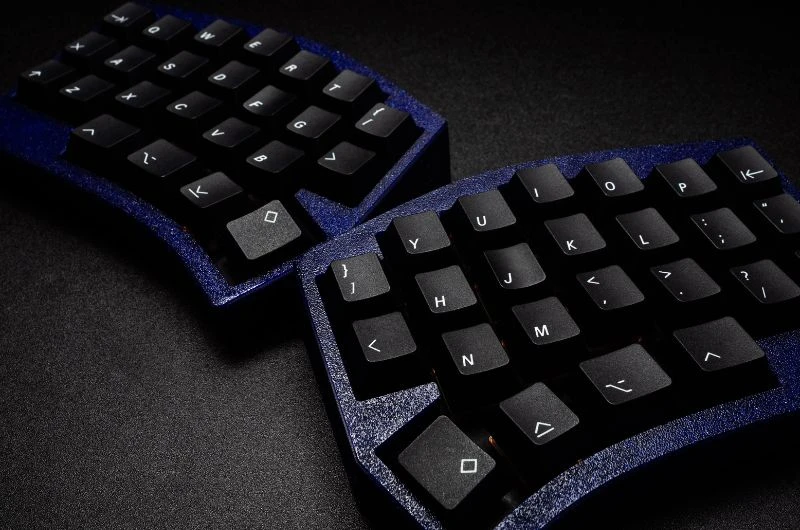
Design: Ergonomic keyboards come in various methods, including split keyboards, curved keyboards, and tented keyboards. Each type offers unique benefits, so choose the most comfortable. Some people prefer split keyboards, which allow your hands to rest in a more natural position. Others prefer curved or tented keyboards, which can help reduce strain on your wrists.
Keys: Look for comfortable keys to type on and provide adequate feedback. Some ergonomic keyboards use a different key layout or size to reduce the risk of mistakes. Make sure the keys are spaced in a way that feels comfortable to you.
Wrist support: Look for a keyboard with built-in wrist support that promotes a neutral wrist position. This can help reduce strain on your hands and wrists. Some keyboards on this list come with removable wrist rests.
Compatibility: Ensure your chosen keyboard is compatible with your computer’s operating system. Most ergonomic keyboards are compatible with both Windows and Mac OS, but double-checking is always a good idea.
Top Ergonomic Keyboards for Home Office Use
Now that you know what to look for when choosing an ergonomic keyboard, here are some of the top options on the market:
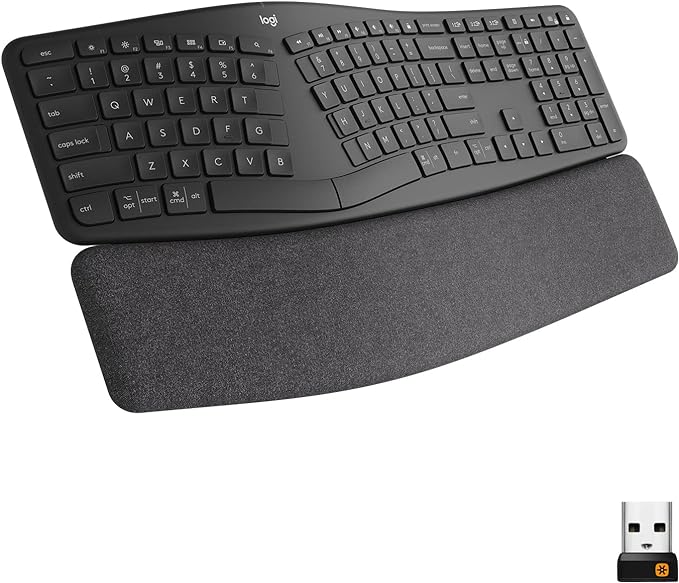
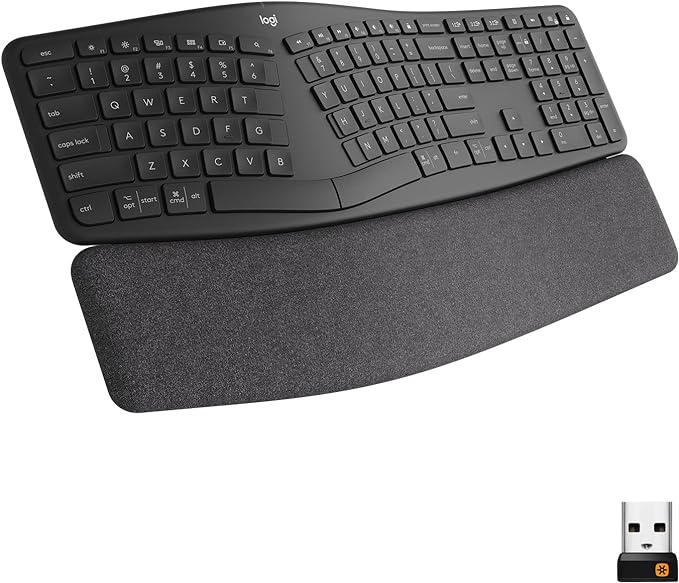
The Logitech Ergo K860 features a split keyboard design and a curved, pillowed wrist rest, providing excellent support for your hands and wrists. It also has a long wireless range and is easy to set up. This keyboard is wireless and compatible with both Windows and Mac OS. Here are some features of the Logitech Ergo K860:
Compatible with Windows, macOS, and Linux: You can use the Logitech ERGO K860 with your favorite operating system.
Wireless range:10 m (33-ft) wireless range This gives you the freedom to move around your workspace without having to worry about your keyboard disconnecting.
Pillowed Wrist Rest: The curved wrist rest with a memory foam layer provides 54% more wrist support than standard keyboards. This helps to keep your wrists comfortable and aligned throughout the day.
Ergonomist Approved: The Logitech ERGO K860 is certified by the United States Ergonomics to improve posture and reduce strain on your wrists, forearms, and neck.
Familiar Features: The Logitech ERGO K860 has all the features you expect from a Logitech keyboard, including a USB receiver and Bluetooth connectivity, customizable Fn keys, quiet keys, a full-size layout, and a CAPS LOCK indicator.
Easy to set up: Just plug in the USB receiver or connect via Bluetooth, and you’re ready to go.
Backed by a 3-year warranty: Logitech stands behind the quality of their products.
Overall, the Logitech Ergo K860 is a comfortable and customizable ergonomic keyboard for home office use. With its split keyboard design, pillowed wrist rest, adjustable legs, wireless connectivity, and compatibility with Windows, Mac OS, and Linux, this keyboard offers a range of features that can help improve your comfort and productivity while working from home.
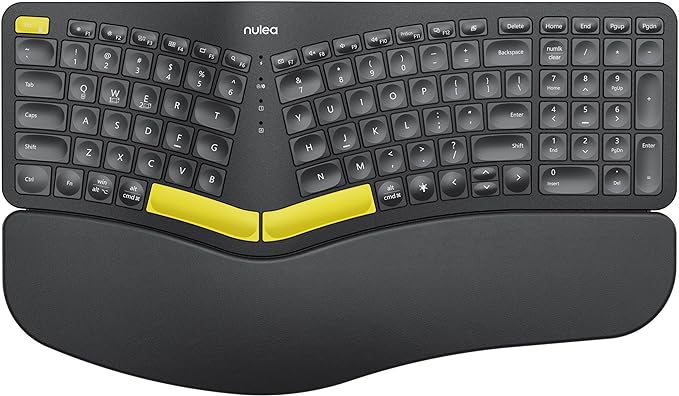
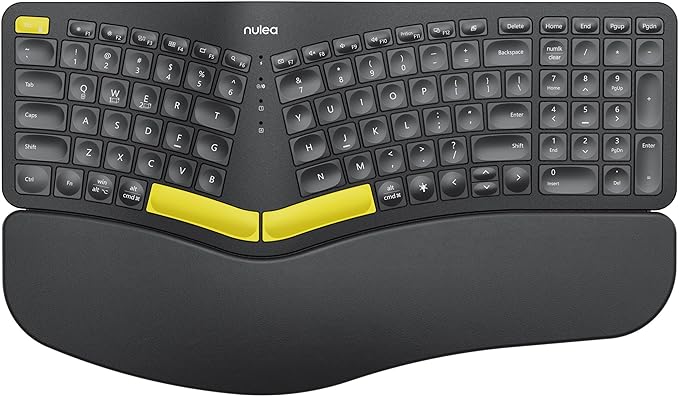
Elevate your work-from-home experience with the Nulea Wireless Ergonomic Keyboard, a masterpiece of comfort, quality, and design. Customers rave about the keyboard’s soft, responsive keys that provide a satisfying tactile experience, making typing a joy. The wide, ergonomic palm pads offer exceptional support, keeping your wrists in a natural position and reducing strain. The keyboard’s overall build quality exudes premium craftsmanship, evident in its sturdy construction and durable materials. Here are some features of the Nulea Wireless Ergonomic Keyboard:
Work Comfortably, Prevent Pain: Standard keyboards can strain your wrists and arms, leading to discomfort and pain. The Nulea ergonomic wireless keyboard’s split, splayed, and curved design helps you position your body more naturally, reducing fatigue and injury risk.
Easy Switching, Multitask Effortlessly: Connect the Nulea Bluetooth keyboard to up to three devices simultaneously and switch between them seamlessly with a single button press. Easily transition from typing an email on your computer to sending a text on your smartphone, changing background music on your laptop, and finishing that email on your PC – all with one tap.
Personalize Your Workspace, Enhance Your Mood: Choose your preferred brightness and lighting style from 3 brightness levels and 7 color options. Select from blue, green, red, cyan, purple, yellow, or white. Customize your keyboard setting and elevate your desk setup for a personalized touch.
Uninterrupted Productivity, Stay Charged: Focus entirely on your work without pesky interruptions from low battery notifications. The Nulea Bluetooth keyboard’s larger internal battery (2000mAh) and longer operating time ensure you stay powered up. Recharge easily using the USB-C charging cord when needed.
Adjustable Tilt Legs, Optimal Hand Positioning: Adjust the wireless keyboard to 3 different tilt levels using the 4 adjustable tilt legs. This design keeps your wrists in a comfortable position, reducing strain and fatigue, regardless of your work posture.
Beyond comfort, the Nulea Wireless Ergonomic Keyboard also stands out for its ease of use and aesthetic appeal. Customers appreciate the intuitive design and seamless connectivity, allowing for effortless setup and operation. The keyboard’s sleek profile and customizable backlighting enhance your workspace with a touch of style and personalization.
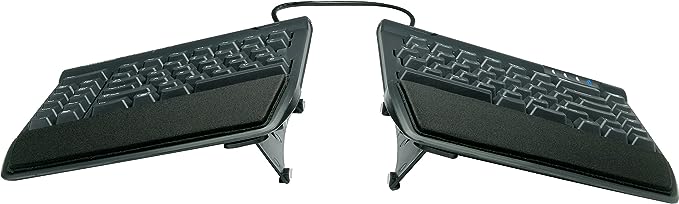
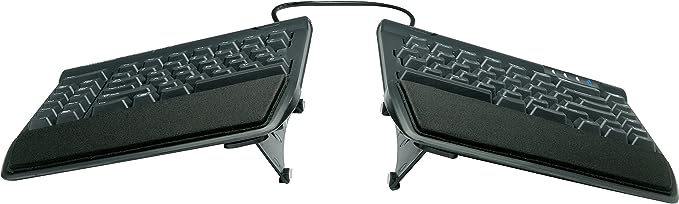
The Kinesis Freestyle 2 is a testament to comfort, compatibility, and adjustability. Customers applaud the keyboard’s ergonomic design, which promotes natural hand and wrist positions, reducing strain and fatigue. The keys deliver a satisfying tactile click, enhancing typing feedback and precision.
The Kinesis Freestyle 2 seamlessly integrates into your work setup, ensuring compatibility with various devices and operating systems. Its versatile design allows for customization to suit your individual preferences. Adjust the tenting angle to optimize forearm alignment and wrist support, or rotate and separate the key modules to achieve a comfortable hand position. Here’s a little more about the Kinesis Freestyle 2:
Customized Comfort: Achieve Natural Hand Positions: The Freestyle 2’s unique split design allows you to rotate and separate the key modules up to 9 inches, enabling you to adjust the keyboard to perfectly match your body type and preferences. This customization ensures that your hands, wrists, and forearms maintain a natural position while typing, minimizing strain and discomfort.
Enhanced Forearm Support: Embrace Optimal Typing Posture: The Kinesis Freestyle 2 model comes pre-assembled with the VIP3 tenting accessory, providing a range of tenting options – 5, 10, or 15 degrees. This feature elevates the inner edges of the key modules, further promoting a neutral forearm position and optimal wrist support.
Seamless Productivity: Standard Windows Layout with Hotkeys: The Freestyle 2 for PC seamlessly integrates into your existing work-from-home setup with its standard Windows layout. Hotkeys for Cut, Copy, Paste, multimedia controls and an embedded numeric 10-key are readily accessible, boosting your productivity without requiring software or special drivers.
Reduced Finger Fatigue: Low-Force Key Switches for Effortless Typing: The Freestyle 2 employs custom membrane key switches, designed with a low-activation force and tactile feedback. This combination reduces finger fatigue, impact, and strain, making typing a more comfortable and enjoyable experience.
Effortless Setup-Everything You Need in the Box: The Freestyle 2 package includes everything you need to optimize your work-from-home setup: the keyboard itself with a standard Windows layout, pre-installed VIP3 tenting accessory, and palm supports, adhesive cushioned palm pads, a detachable pivot tether for adjustable splay, and a Quick Start Guide for a hassle-free setup.
The Kinesis Freestyle 2 is a smart choice for work-from-home professionals seeking comfort, compatibility, and adjustability. Its ergonomic design promotes natural hand and wrist positions, reducing strain and fatigue, while its customizable features allow you to tailor the keyboard to your specific needs. The satisfying tactile click of the keys enhances typing feedback and precision, and the keyboard’s compatibility with various devices and operating systems ensures seamless integration into your work setup. Embrace comfort and productivity with the Kinesis Freestyle 2!
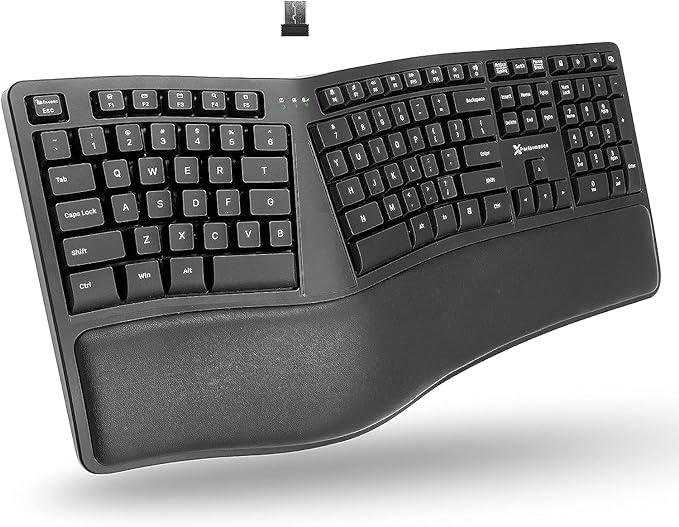
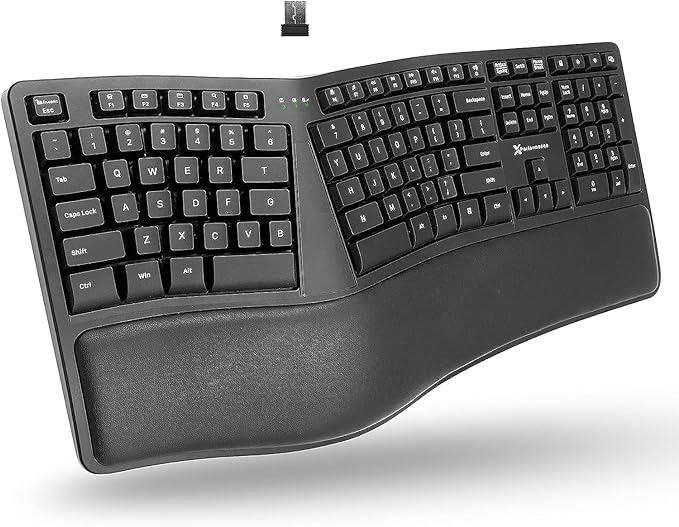
With its user-focused design, exceptional affordability, and productivity-enhancing benefits, the X9 ergonomic wireless keyboard is the perfect companion for your work-from-home setup. This keyboard is compatible with Windows, Mac OS, and Chrome. Here are some features of the X9 Ergonomic Wireless Keyboard:
Type Comfortably With a Cushioned Wrist Rest: The integrated cushion provides much-needed support for your hands, keeping them level with the keys for improved comfort and efficiency.
Split Ergonomic Design for Natural Positioning: Unlike traditional keyboards that force your hands into an unnatural position, the wave keyboard encourages a natural hand posture, reducing strain and fatigue.
Work Efficiently: The full-sized 110-key layout with 17 shortcuts and a numeric keypad is designed to boost your productivity. With easy access to frequently used functions, you can get more done in less time.
Extended Battery Life: Our wireless keyboard features a large 600mAh internal battery, the rechargeable wireless keyboard will last months between charges. Charging cable will be included.
Dependable 2.4G Wireless Connectivity: Clear the cable clutter on your desk and enjoy a clean workspace. The wireless keyboard ergonomic is plug and play and offers a 30ft range through the USB-A RF receiver.
Backed by a 2-Year Warranty: A little peace of mind knowing that your investment is protected.
The X9 ergonomic wireless keyboard has garnered favorable reviews from users who appreciate its smooth, quiet keys, satisfying clack, and natural ergonomic design. The keyboard’s ease of use, excellent price, and overall comfort have also been praised, making it a popular choice for those seeking a comfortable and affordable typing experience. While it’s not the best on this list, it is definitely the best for anyone on a tight budget.
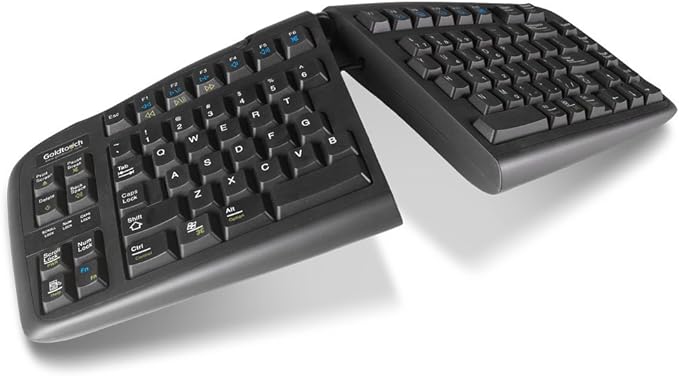
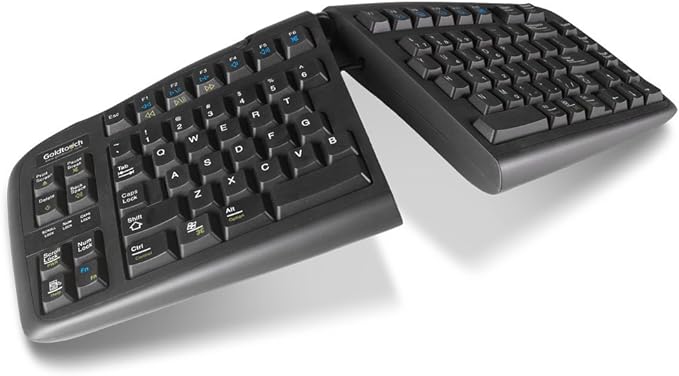
Despite being last on this list, the V2 is an absolute ergonomic keyboard “contender” designed to elevate your work-from-home experience. It is a split keyboard that allows you to adjust its angle and height. This flexibility allows you to personalize your typing posture, ensuring optimal comfort and minimizing muscle strain. Investing in the V2 is an investment in your well-being and productivity.
Experience effortless typing with the V2’s soft key touch and low activation force. Glide across the keys with ease, minimizing fatigue and allowing you to focus on the task at hand. The V2 fosters a more natural typing form, reducing stress on your wrists and fingers, and promoting a healthier work environment. Here are some features of the Goldtouch GTU-0088 V2:
Split keyboard design: The Goldtouch GTU-0088 V2 features a split keyboard design, which allows you to adjust the two halves of the keyboard to suit your individual ergonomic needs. This design can reduce strain on your hands and wrists, allowing you to position your hands more naturally and comfortably.
Adjustable angles and height: In addition to the split keyboard design, the Goldtouch GTU-0088 V2 also allows you to adjust the keyboard’s angle and size. This customization allows you to find the perfect typing angle for your body, helping to prevent pain and discomfort while typing.
Cushioned palm rest: The Goldtouch GTU-0088 V2 features a cushioned palm rest, which can help reduce strain on your wrists and provide additional comfort while typing.
Wired connectivity: This keyboard is wired and connects to your computer via a USB cable. Some users prefer wired keyboards because they provide a more reliable and stable connection than wireless keyboards.
Compatible with Windows and Mac OS: The Goldtouch GTU-0088 V2 is compatible with both Windows and Mac operating systems, making it a versatile choice for home office use.
Goldtouch GTU-0088 V2 is an excellent option for anyone looking for a customizable and comfortable ergonomic keyboard for home office use. With its split keyboard design, adjustable angles and height, cushioned palm rest, and wired connectivity, this keyboard offers a range of features that can help improve your comfort and productivity while working from home.
An ergonomic keyboard is designed to reduce strain and discomfort on the hands, wrists, and arms while typing and can help prevent repetitive strain injuries (RSIs) like carpal tunnel syndrome. When looking for an ergonomic keyboard, it’s important to consider features like comfort, design, adjustability, and price, as well as popular brands like Microsoft, Logitech, Kinesis, and Ergodox, etc. The best ergonomic keyboard for you will depend on your preferences and needs, including options like a fabric keyboard for a softer touch or a vertical keyboard to maintain a more natural hand position. It’s a good idea to read reviews and try out different options, including fabric and vertical keyboards, to find the one that works best for you. Here are some of the common FAQs when it comes to the best ergonomic keyboard for home office use:
Q: Why should I use an ergonomic keyboard?
A: Using an ergonomic keyboard can help prevent repetitive strain injuries (RSIs) like carpal tunnel syndrome and reduce discomfort and fatigue while typing. They can also improve typing speed and accuracy.
Q: What features should I look for in an ergonomic keyboard?
A: Look for a keyboard with a comfortable, natural design that promotes good posture and reduces strain on the hands and wrists. Consider features like adjustable tilt, customizable key mapping, and a built-in wrist rest.
Q: What are some popular ergonomic keyboard brands?
A: Some popular ergonomic keyboard brands include Microsoft, Logitech, Kinesis, and Ergodox.
Q: How much should I expect to spend on an ergonomic keyboard?
A: Prices for ergonomic keyboards vary widely, but you can expect to pay anywhere from $50 to $300 or more, depending on the features and quality of the keyboard.
Ergonomic Keyboards: Final Thought
Ergonomic keyboards are an excellent investment for anyone who spends a lot of time typing. They are one of the best ways to prevent possible strains and other injuries and keep you “happily” typing away. These keyboards are designed with user comfort in mind, ensuring a more natural hand and wrist position that can significantly reduce the risk of developing repetitive strain injuries. They can help reduce the risk of RSIs, increase typing speed and accuracy, and improve posture and comfort. Consider factors like design, key feel, wrist support, and compatibility when choosing an ergonomic keyboard. With so many great options, there’s no reason to suffer discomfort and pain while typing. Make the switch today and unleash unparalleled comfort and productivity!